Version - 2.3
- HTML Report: A Suite execution report in HTML format has been added. This report will be delivered as an email attachment following the suite's execution.
- Bulk Labelling of Scripts: Users can now manage labels for many scripts at once. This includes adding or removing labels, removing all labels, removing a single label, or altering a label across many scripts at the same time.
- Label in Analytics: A new filter called "Labels" has been introduced to the Analytics section, allowing users to filter analytics data by label.
- Search and Filters in Result Execution: The Execution Dashboard's Results page now includes search and filter capability for the Test Development section. New features have been introduced to the Overview and Result pages for suite Execution IDs in the Execution Dashboard's Test Execution section. Users can now search for scripts and modules while also filtering script statuses.
- Time Zone: This feature allows end users to run a suite according to their clients' time zones or their preferences. All resources created and modified will be displayed based on the selected time zone. Suite results, analytics, and dashboard data will reflect the selected time zone. The time zone feature is accessible to super admins and admins, enabling them to select a desired time zone.
- AI-based NLP Search: AI-based NLP Search leverages artificial intelligence and natural language processing to deliver more accurate and relevant NLP search results. It understands the context and intent behind user search queries, improving search efficiency and effectiveness.
- Mark Script as Automatable or Not: A toggle button is introduced to mark scripts as automatable or not. In the Test Development section, when a user clicks the “+Manual Test Case” button to create a manual test case, a "Create Manual Test Case" pop-up will be displayed. In this pop-up, below the “Create new Manual Test Case” radio button, there is a question, "Are you planning to automate this Manual Test Case?" with a “Yes” or “No” toggle button.
- Introducing #: Introduced a “#” symbol that allows users to access and store all file paths in variables, which can then be used in the file path sections. This implementation makes it easier for users to update file paths without having to manually visit each section or page. By changing the path value in the variable, the update will be reflected everywhere, simplifying the process of running the same script with different files.
- Machine Non-Mandatory:Users can now create a suite without selecting any machines. Clicking "Create" will successfully create the suite even if no machines are selected.
- Move Elements, Move Libraries, Move Pages: Users can now move elements, libraries, and pages seamlessly between Pages, Screens, and Libraries.
- Navigate to a specific step within a script: Users can now easily navigate to specific steps within a script. When a user clicks the "Go to Step" link from the results page, they will be redirected to the script with the particular step highlighted. This feature allows users to directly access a specific step within a script from the results page.
- FireFlink Client
- Capturing Mobile Web Elements: This allows users to capture Web Elements on mobile devices.
- Clear Cookies: Users can now clear the cookies from the FireFlink client.
- Capture and Navigate: As a user, you now have the option to enable the 'Capture and Navigate' functionality, allowing you to capture elements and perform actions on them simultaneously.
- Web Service
- JWT Authorization: JWT bearer tokens have been implemented to authorize requests. You can enter a payload in an editor, and the JWT tokens will be generated and added to the request.
- Request Name and URL Hyperlink in the History Section: Users now have the option to save a request as a step by clicking on the Request Name and Request URL displayed under the History tab.
- Snippets in Web Services: Five default snippets have been introduced: "Generation of Random Number," "Generate Random String," "Generate UUID Number," "Generate Current Date and Time," and "Set Variable." Users can use these snippets in the pre-requisites or custom asserts by assigning a variable and utilizing it in the request.
- Settings Tab: A new "Settings" tab has been implemented in web services, allowing users to configure the following settings for web service requests:
- Request Timeout: Users can specify the duration (in milliseconds) that FireFlink should wait for a response before timing out. Entering 0 will make FireFlink wait indefinitely for a response.
- Maximum Number of Redirects to Follow: Users can set a limit on the maximum number of redirects to follow for any request.
- Redirect with the Original HTTP Method: Users can choose to redirect using the original HTTP method instead of the default GET method by enabling the toggle button.
- Retain Authorization Header While Redirects: Users can retain the authorization header even when redirecting to a different hostname by enabling the toggle button.
- TLS Certificate Verification: Users can verify the TLS certificate while sending requests by enabling the toggle button.
- Performance Improvements:
- The device detection time has been optimized, significantly reducing the time needed to detect devices connected to the machine.
- The issue with the API response time is reduced under the web service section.
How to Update FireFlink Client All users are requested to download the latest jars in the Fireflink client. Please refer to the instructions below
A. Open FireFlink Client.
B. Click on the 'Hamburger' menu (Top Left Corner)
C. Click on the 'Check for updates' sub-menu.
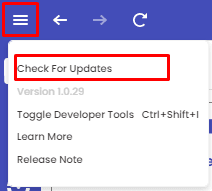
Check for updates D. Click on 'Updates are ready to be installed.' in the popup as shown below.
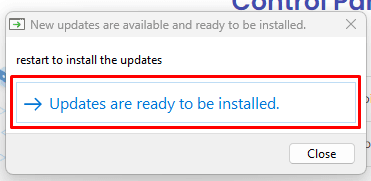
New updates available Popup Exhibit 1 - New updates available Popup E. Click on install and restart in the popup window
F. Click on the Finish button in the setup window
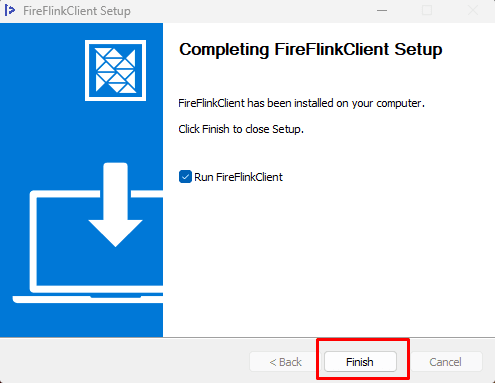
FireFlink Client Setup window Exhibit 3 - FireFlink Client Setup window FireFlink client will restart and automatically install the most recent jars. You may validate the most recent jars deployed by looking for "Version 1.0.29" under the view menu.
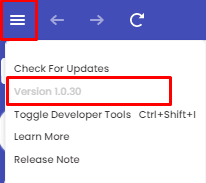
FireFlink Finder version Exhibit 4 - FireFlink Finder version number details G. Click on the 'Control Panel' side menu
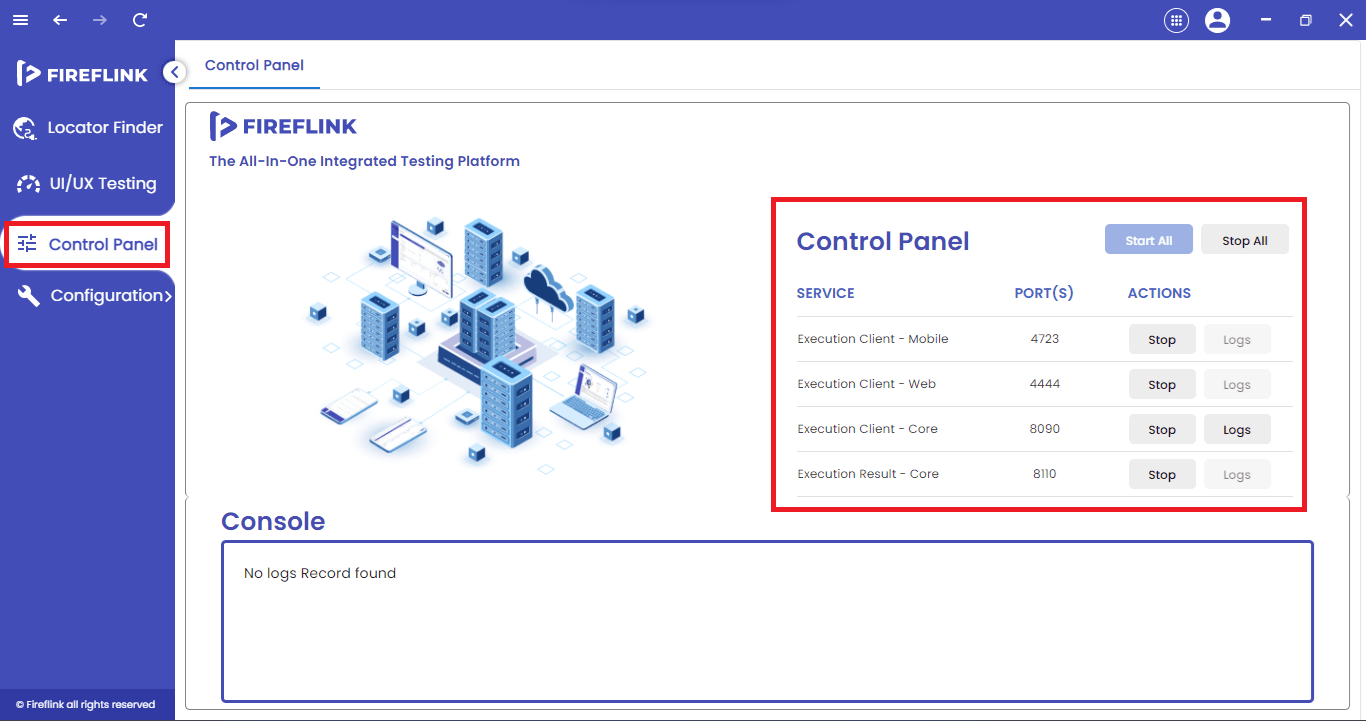
Control Panel menu Exhibit 5 - Control Panel menu FireFlink Client By making sure that the "Stop" button is active for each service, as seen below, you can confirm that the most recent jars have been downloaded.
Important Notes Note: If you are still having issues, please email our customer support team at support@fireflink.com .